
Evidence Management
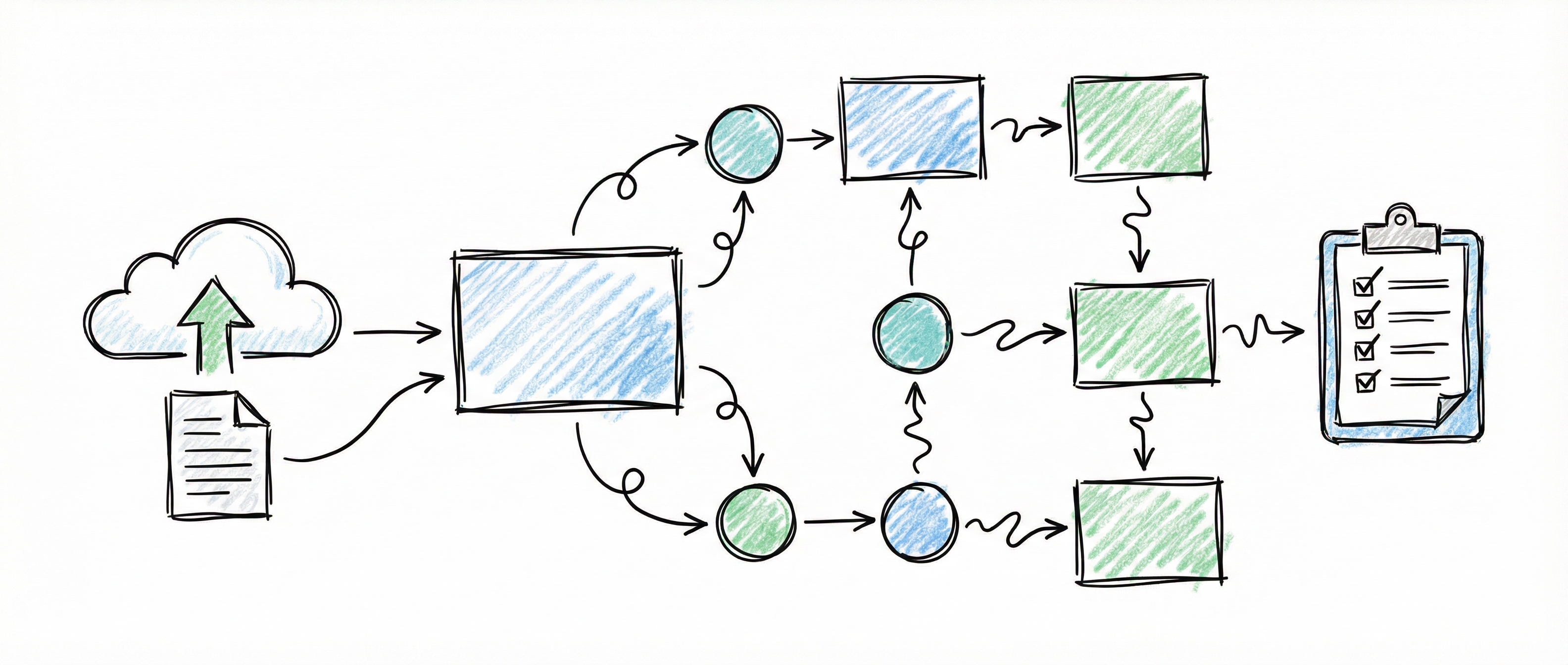
Evidence management is the process of identifying, tracking, and collecting artifacts that prove your controls are implemented and operating effectively. The platform provides a unified Evidence Workspace alongside a Systems Registry and Tasks section to support this workflow.
Overview
Section titled “Overview”| Section | Purpose | Access |
|---|---|---|
| Evidence | Unified workspace for scoping, reviewing, and monitoring evidence health | Evidence item in sidebar |
| Tasks | Manage evidence collection tasks | Tasks icon |
| Systems Registry | Register systems that collect evidence | Systems Registry in sidebar |
Evidence Workspace
Section titled “Evidence Workspace”The Evidence section is a single unified workspace accessed via the Evidence item in the sidebar. It consolidates evidence scoping, reporting, and health monitoring into two tabs: Workspace and Dashboard.
Workspace Tab
Section titled “Workspace Tab”The Workspace tab follows the platform’s usual pattern: a collapsible filter sidebar and a
full-width evidence list, which opens the selected item as a full-width detail page. ←/→ step
between evidence items and Esc returns you to the list.
The list shows each unique evidence item once, across every control that requires it — the Required by Controls strip on the detail page names them, and each is a link through to that control in Control Scoping.
Search and Filtering
Section titled “Search and Filtering”- Search — Find evidence items by keyword
- Domain filter — Narrow results to a specific SCF domain
- Team filter — Show only the evidence a given team owns
- Function filter — Show the evidence owned by any team delivering that business function
Evidence Item Configuration
Section titled “Evidence Item Configuration”For each evidence item, you can configure:
| Field | Description |
|---|---|
| Is Tracked | Toggle to indicate active evidence collection |
| Collecting System | System responsible for collecting this evidence |
| Method of Collection | How evidence is gathered (API, manual, etc.) |
| Frequency | How often evidence is collected |
| Notes | Additional tracking information |
Ownership is set in the Owning teams section of the same block, below Frequency — see Team Ownership below.
Batch evidence tracking is available for bulk operations when you need to configure multiple items at once.
Team Ownership
Section titled “Team Ownership”An evidence item can be owned by one or more of your organisation’s real teams, exactly one of which is marked accountable. Teams are defined once in User Management and referenced here.
The Owning teams section sits inside Your Collection Record on the evidence detail view, below Frequency — with how the evidence is collected, rather than below the comment thread at the foot of the page.
- Pick a team from the Select a team… dropdown and click Add team
- Repeat for every team that genuinely owns part of collecting this evidence
- Select the Accountable radio button on exactly one of them
Adding a team never makes it accountable — that is a separate click. The section appears only once the evidence tracking has been saved; before that you will see Save this evidence tracking to enable owning teams and comments.
Evidence is collected collaboratively more often than controls are implemented collaboratively — the system owner produces the export, the control owner interprets it, GRC files it — so more than one owning team is the normal case rather than the exception. Accountability is what stops that from becoming nobody’s job: when the evidence is missing at audit, one named team answers for it. The platform allows at most one accountable team per evidence item, and selecting the radio button on a second team moves the marker off the first in one step.
An item with teams owning it but none accountable shows a No accountable team badge beside the heading. An item that no team owns shows No teams own this evidence item yet and no badge. Both states are allowed — you can add the teams now and settle accountability later — and neither blocks anything, but the badge is worth clearing before an audit rather than during one.
Removing the accountable team leaves the item owned by the rest with nobody accountable, and the badge returns. Accountability is never inherited by a remaining team — somebody has to choose the successor.
Changing ownership requires the Admin role. Any member can see who owns what; non-admins see the accountable team as a plain Accountable pill.
The evidence list can also be filtered by owning team and by business function, using the All Teams and All Functions dropdowns beside the domain filter. Filtering by function matches every team that delivers it, so a federated organisation can ask “what does Security Operations owe us?” without naming each regional team.
Collection Interfaces
Section titled “Collection Interfaces”The platform displays available collection interfaces for each evidence item, annotated with automation level badges:
- High automation — Fully automated via API
- Medium automation — Partial automation available
- Low automation — Primarily manual collection
AI-Powered Collection Suggestions
Section titled “AI-Powered Collection Suggestions”When AI suggestions are available, the platform recommends systems from your registry that can collect the evidence. These suggestions are based on system type, capabilities, and the nature of the evidence required.
Evidence Files
Section titled “Evidence Files”Evidence files can be uploaded directly via drag-and-drop. The accepted formats are PDF, DOCX, XLSX, CSV, TXT, JSON, YAML, ZIP, PNG, JPEG and GIF.
For each uploaded file, the workspace shows:
- Preview — Inline preview where supported
- Download — Direct download link
- Malware scan status — Automated scan result for uploaded files
Evidence files are stored in your deployment’s configured object storage. Files uploaded via webhooks (from automated collection systems) are surfaced alongside manually uploaded files in the same list.
Collection Wizard
Section titled “Collection Wizard”The Collection Wizard provides a guided setup flow for configuring automated collection points. It walks you through connecting a registered system, selecting the evidence it will provide, and defining the collection schedule.
Assignments, Comments, and Tasks
Section titled “Assignments, Comments, and Tasks”Each evidence item supports:
- Assignments — Assign team members to manage evidence
- Comments — Discuss collection approaches and issues
- Tasks — Create collection tasks directly from evidence items
Evidence Maturity Assessment
Section titled “Evidence Maturity Assessment”The workspace includes evidence maturity assessment with advisory cards that highlight areas for improvement, helping you understand the quality and completeness of your evidence program over time.
AI Evidence Assessment and Review
Section titled “AI Evidence Assessment and Review”Every evidence item’s files are assessed by the platform’s AI as a portfolio per collection window, and a reviewer confirms or corrects the verdict from the evidence page or the Awaiting confirmation queue on the Dashboard tab. The AI evidence assessment guide covers preparer assertions on upload, what a window verdict contains, the review queue and how confirmation feeds the Evidence Quality score.
Dashboard Tab
Section titled “Dashboard Tab”The Dashboard tab (powered by the EvidenceDashboardTab component) provides a high-level view of evidence health across your organization.
Health Summary Bar
Section titled “Health Summary Bar”The header displays aggregate counts with percentages:
- Tracked — Total evidence items with active tracking
- Fresh — Evidence that is current and up to date
- Stale — Evidence that is approaching its collection deadline
- Critical — Evidence that has exceeded its collection deadline
- No Data — Tracked evidence with no collection data yet
A color-segmented health progress bar provides an at-a-glance visual summary of these statuses.
Status Filter Tabs
Section titled “Status Filter Tabs”Filter the dashboard view by evidence health status:
| Tab | Color | Shows |
|---|---|---|
| All | — | All tracked evidence items |
| Fresh | Green | Evidence within its collection window |
| Stale | Amber | Evidence approaching its deadline |
| Critical | Red | Evidence past its deadline |
| No Data | — | Evidence with no collection records |
Evidence Health Cards
Section titled “Evidence Health Cards”Each evidence item is represented as a card displaying:
- Status dot (color-coded by health)
- Evidence identifier and description
- Last collection date
- Collecting system
Clicking any card navigates directly to that item in the Workspace tab, pre-selected and scrolled into view. This makes it easy to act on gaps identified in the dashboard without switching between views manually.
The Tasks section helps you manage evidence collection activities. Access it by clicking the Tasks icon in the sidebar.
Task Views
Section titled “Task Views”| View | Shows |
|---|---|
| My Tasks | Tasks assigned to you |
| All Tasks | All organization tasks |
Task Types
Section titled “Task Types”| Type | Purpose |
|---|---|
| Feasibility | Assess if evidence can be collected as planned |
| Setup | Configure systems for evidence collection |
| Collection | Perform evidence collection activity |
| Review | Review collected evidence for completeness |
| Documentation | Document collection procedures |
| Issue | Address problems with evidence collection |
Task Properties
Section titled “Task Properties”Each task displays:
- Title — Description of the work
- Evidence ID — Link to related evidence item
- Priority — Low, Medium, High, or Critical
- Due Date — Target completion date
- Status — Not Started, In Progress, or Completed
- Assigned To — Responsible team member
Task Status Colors
Section titled “Task Status Colors”| Status | Color |
|---|---|
| Not Started | Blue |
| In Progress | Orange |
| Completed | Green |
Working with Tasks
Section titled “Working with Tasks”Update a task:
- Click Edit on the task card
- Change the status
- Add completion notes if applicable
- Click Save
Navigate to evidence: Click the evidence ID link to jump directly to that evidence item in the Evidence Workspace.
Task Stats
Section titled “Task Stats”The header shows:
- Total tasks
- Tasks by status (not started, in progress, completed)
- Overdue count
Automatic Task Generation & Reminders
Section titled “Automatic Task Generation & Reminders”The platform runs daily background jobs so recurring evidence collection doesn’t depend on anyone remembering it:
- Task generation (daily) — for every tracked evidence item with a collection frequency (daily, weekly, biweekly, monthly, quarterly, semi-annually, or annually), a Collection task is created with a due date of the last collection plus the interval, assigned to the evidence item’s assignee or owner. If an item’s collection already lapsed, the generated task’s due date is in the past, so it arrives already overdue and is alerted on the same day — expected behaviour for a backlog item, not a bug. Duplicate tasks aren’t created if an open one already exists around the same due date. Items whose frequency is “as required”, “continuous”, “ongoing” or similar are left alone — they have no fixed cadence to schedule.
- Due reminders (daily) — from three days before a task’s due date until the due date itself, whoever the task resolves to gets a bell notification (and an email, if immediate email notifications are enabled) that the collection is coming due.
- Overdue escalation — once a task passes its due date it escalates on the day it becomes overdue, again at 7 days overdue, and again at 30 days overdue. It does not alert every day in between. Who each of those reaches is set out under Who Gets Notified.
Self-hosted administrators can switch the automation off with the TASK_AUTOMATION_ENABLED environment flag — see the Configuration guide.
Who Gets Notified
Section titled “Who Gets Notified”Reminders, overdue alerts and escalations all work out their recipients the same way — one rule, applied to tasks, evidence items and controls alike. It is worth understanding, because it is what stops work going quiet when the person who owned it leaves the organisation, or is simply on annual leave.
The resolution chain
Section titled “The resolution chain”The platform works down three tiers and stops at the first tier that produces anybody. It does not add them together.
| Tier | Who is notified | When this tier applies |
|---|---|---|
| 1 — The named person | The item’s assignee | Whenever the item has one |
| 2 — The accountable team | That team’s primary and its delegate | When nobody is named on the item, but a team is accountable for it |
| 3 — Organisation admins | Every admin in the organisation | When neither of the tiers above produces anybody |
Tier 1 is the behaviour you already know. Tier 2 is the new one, and it is the reason teams are worth setting up: an item whose assignee had left the organisation used to resolve to nobody at all and go quietly silent. Now it resolves to whoever is currently on point in the team that answers for it — a fact about how the organisation is arranged rather than a fact about one person, so it survives people joining and leaving.
Recipients are a set, so somebody who is both the named assignee and the accountable team’s primary receives one notification, not two.
Why both the primary and the delegate
Section titled “Why both the primary and the delegate”Tier 2 notifies the primary and the delegate at the same time, rather than reaching for the delegate only after the primary has failed to act.
A delegate contacted only on escalation is no help in the case teams exist to solve. If the primary is on annual leave, off sick, or simply not looking at the platform this week, a primary-only notification is a silent single point of failure — which is exactly the failure that tying ownership to one person produces in the first place. Notifying both from the outset costs one extra notification and removes the failure entirely.
The practical consequence is that a team’s delegate should be somebody who could genuinely pick the work up, not a nominal second name.
Consulted teams are not paged
Section titled “Consulted teams are not paged”An item can be owned by several teams, but only one of them is accountable. The others are consulted, and consulted teams are deliberately left off the routine notification path.
This is the part people ask about, so it is worth stating plainly: being consulted means being informed, not being paged. A consulted team sees the item in its own team view, and in the team and function filters on the evidence and controls lists, exactly as the accountable team does. What it does not receive is a notification every time that item comes due. Consulted teams hear about an item only when it escalates.
The reason is arithmetic. A control with five consulted teams, each with a primary and a delegate, would notify ten people about an ordinary due date. Repeat that across a control set and the platform becomes something everybody mutes — at which point the accountable team stops seeing its own alerts too, and the notifications that mattered are lost along with the ones that did not.
If a team needs to hear about an item routinely, make it the accountable team, or name one of its members as the item’s assignee.
Escalation fires on thresholds, not every day
Section titled “Escalation fires on thresholds, not every day”Three things count as an escalation: an item becoming overdue, a control’s evidence being assessed insufficient, and evidence being rejected by a reviewer. All three notify the accountable team’s primary and delegate, and the primary and delegate of every consulted team, in addition to whoever the chain had already resolved. A stalled item therefore reaches the owning team even when an individual is named on it, and reaches the teams that were only ever consulted. These are also the only events a consulted team hears about.
Note that this is still the primary-and-delegate rule that applies everywhere else, not a broadcast: a consulted team of eight produces two notifications, not eight. Three consulted teams produce six. That is the difference between an escalation and the daily paging the previous section rules out.
An overdue item does not generate a fresh notification every day it stays overdue. It escalates at fixed points and is quiet in between:
| Escalation | When it fires |
|---|---|
| First | The day the item becomes overdue |
| Second | 7 days overdue |
| Third | 30 days overdue |
An item left overdue for a month under a daily alert produces thirty notifications about one piece of work, which reliably teaches everybody receiving them to ignore the bell. Three notifications, spaced to match how serious the delay has become, stay readable — and the one arriving thirty days late is the one you most want somebody to actually see.
Tasks inherit their evidence item’s team
Section titled “Tasks inherit their evidence item’s team”A collection task does not need a team of its own. By default it has none, and it inherits the accountable team of the evidence item it belongs to. Setting ownership once on the evidence item therefore covers every task underneath it, with nothing to keep in step and no way for the two to drift apart.
A task’s owning team can also be set individually, and one case calls for it regularly. Task types already distinguish Setup, Collection and Review, and on a single evidence item those are routinely three different functions: engineering wires up the log export, the platform team collects it, GRC signs it off. Giving the review task to GRC while the rest of the item stays with engineering describes what actually happens rather than flattening it.
Setting a task’s owning team overrides the evidence item for that task alone; clearing it returns the task to inheriting. Deleting a team has the same effect on every task that team owned — those tasks go back to inheriting from their evidence item. Deleting a team never deletes tasks.
So for a task, the chain has one extra step: the task’s own assignee, then the task’s own owning team if it has one, then its evidence item’s accountable team, then organisation admins.
Systems Registry
Section titled “Systems Registry”The Systems Registry manages the systems that provide evidence for your compliance program. Access it via Systems Registry in the sidebar (under Operations).
Why Register Systems?
Section titled “Why Register Systems?”Registered systems can be:
- Selected as “Collecting System” in the Evidence Workspace
- Linked to step-by-step collection guidance from the built-in system catalogue
- Matched to collection interfaces for automation suggestions
- Used by AI-powered suggestions to recommend collection approaches
- Tracked for capability coverage
System Types
Section titled “System Types”| Type | Examples |
|---|---|
| Cloud Provider | AWS, Azure, GCP, Terraform Cloud |
| Identity Provider | Okta, Microsoft Entra ID, Duo, JumpCloud |
| Ticketing | Jira, ServiceNow, Zendesk, Freshservice, PagerDuty, ClickUp, monday.com |
| Logging | Splunk, Datadog, Sentry |
| Security Tool | CrowdStrike, SentinelOne, Cloudflare, Wiz, Zscaler |
| Code Repository | GitHub, GitLab, Bitbucket, Azure DevOps |
| Document Management | SharePoint, Confluence, Notion, Box, DocuSign, Cognidox |
| Endpoint Management | Intune, Jamf Pro |
| Vulnerability Management | Snyk, Qualys, Tenable, Rapid7 |
| Email Security | Proofpoint, Mimecast |
| Security Awareness | KnowBe4 |
| Password Manager | 1Password, HashiCorp Vault |
| Communication | Slack, Zoom, Teams |
| HR System | BambooHR, Workday, CharlieHR, Teamtailor |
| Custom | Organization-specific systems |
System Status
Section titled “System Status”| Status | Meaning |
|---|---|
| Active | System is operational and available |
| Inactive | System is not currently in use |
| Deprecated | System is being phased out |
Adding a System
Section titled “Adding a System”Click + Add System in the header. The dialog opens on the system catalogue — a searchable picker of common products (Cloudflare, GitHub, Okta, Microsoft 365, and many more):
- Search or filter the catalogue by name, vendor, or system type
- Pick your system — the form is pre-filled with its name, vendor, type, category, and description, and the system is linked to built-in collection guidance
- Adjust any field (for example, rename it to “AWS Production Account”), then click Add System
If your system isn’t in the catalogue, choose the Custom system card instead and complete the form manually:
- Name — System display name
- Vendor — System provider
- Type — Category from the list above
- Description — Purpose and capabilities
- Status — Current operational state
System-Evidence Matching
Section titled “System-Evidence Matching”When you register systems, the platform:
- Resolves the system to its catalogue guidance (via the template link, or by name/vendor matching for systems added before the catalogue existed)
- Identifies compatible collection interfaces based on system type
- Suggests these systems when configuring evidence tracking in the Workspace
- Helps you understand automation potential across your evidence program
Evidence Collection Workflow
Section titled “Evidence Collection Workflow”Here’s the recommended workflow for managing evidence:
1. Scope Your Controls
Section titled “1. Scope Your Controls”Before tracking evidence, ensure you’ve selected controls in Control Scoping. Only evidence from scoped controls appears in the Evidence Workspace.
2. Register Your Systems
Section titled “2. Register Your Systems”Add your organization’s systems to the Systems Registry. This enables:
- Evidence-to-system matching
- AI-powered collection suggestions
- Automation potential tracking
3. Configure Evidence Tracking
Section titled “3. Configure Evidence Tracking”In the Evidence Workspace (Workspace tab):
- Switch to Evidence view for efficient bulk configuration
- Use search and domain filter to find specific items
- For each evidence item:
- Enable Is Tracked toggle
- Select Collecting System
- Set Method of Collection
- Choose Frequency
- Save, then add the Owning teams and make one accountable
- Use batch evidence tracking when configuring many items at once — it sets frequency and assignee across a selection, so step 3 and the assignee are covered in bulk. Owning teams are set per item, on each item’s detail view.
4. Upload and Manage Evidence Files
Section titled “4. Upload and Manage Evidence Files”For each tracked item:
- Drag and drop files directly onto the evidence detail panel
- Review malware scan status before relying on uploaded files
- Files from webhook-based automated collection appear automatically alongside manual uploads
5. Create Collection Tasks
Section titled “5. Create Collection Tasks”For evidence requiring manual collection:
- Navigate to the evidence item in the Workspace
- Create tasks for collection activities
- Assign team members
- Set due dates aligned with collection frequency
6. Monitor Evidence Health
Section titled “6. Monitor Evidence Health”Use the Dashboard tab in the Evidence Workspace for ongoing oversight:
- Review the health summary bar for overall program status
- Use status filter tabs to focus on stale or critical evidence
- Click any evidence health card to navigate directly to the item in the Workspace for remediation
- Track fresh vs. stale vs. critical ratios over time
Best Practices
Section titled “Best Practices”Evidence Workspace
Section titled “Evidence Workspace”- Start with high-automation evidence — Configure evidence with API collection first
- Assign teams, and name one accountable — Shared collection is fine; ambiguity about who answers for it is not
- Document collection methods — Be specific about how evidence is gathered
- Link to systems — Always specify the collecting system
- Monitor the Dashboard regularly — Catch stale evidence before it becomes critical
Task Management
Section titled “Task Management”- Use appropriate task types — Match task type to the actual work
- Set realistic due dates — Align with collection frequencies
- Complete tasks promptly — Update status as work progresses
- Add completion notes — Document what was done for audit trail
Systems Registry
Section titled “Systems Registry”- Keep systems current — Update status when systems change
- Use accurate types — Enable proper capability matching
- Include all relevant systems — Don’t miss evidence sources
Related Guides
Section titled “Related Guides”- Control Management — Scope controls that drive evidence requirements
- Dashboard Overview — View evidence tracking metrics
- Automated Evidence Collection — Set up collection points for automated evidence
- Framework Management — Understand control-to-framework mappings