
Evidence Management
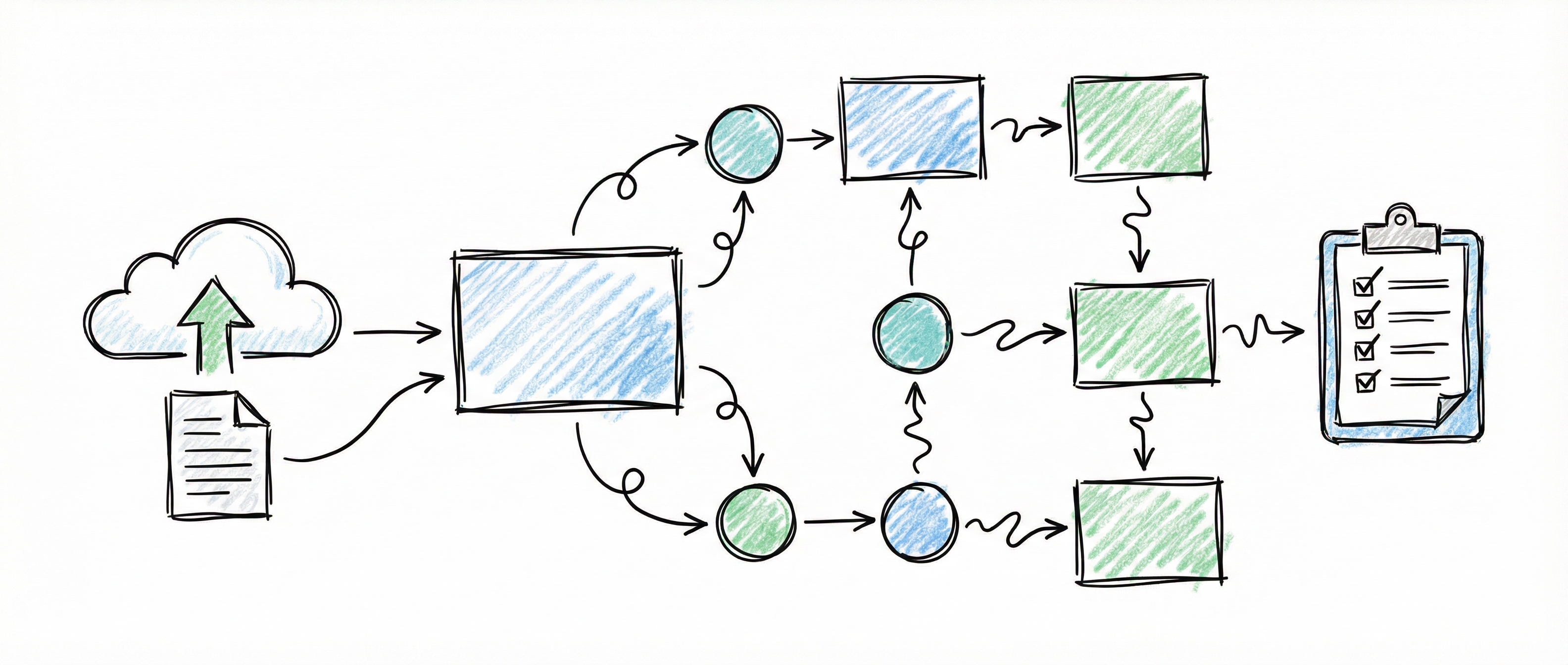
Evidence management is the process of identifying, tracking, and collecting artifacts that prove your controls are implemented and operating effectively. The platform provides four integrated sections for this workflow.
Overview
Section titled “Overview”| Section | Purpose | Access |
|---|---|---|
| Evidence Scoping | Select and configure evidence tracking | Checkbox icon |
| Evidence Reporting | View reports by team or frequency | Chart icon |
| Tasks | Manage evidence collection tasks | Tasks icon |
| Systems Registry | Register systems that collect evidence | Monitor icon |
Evidence Scoping
Section titled “Evidence Scoping”Evidence Scoping is where you track which evidence items your organization will collect. Access it by clicking the Checkbox icon in the sidebar.
Interface Overview
Section titled “Interface Overview”Header Stats
- Tracked — Number of evidence items actively being collected
- Evidence — Total unique evidence items across scoped controls
- Progress bar — Visual indicator of tracking coverage
View Mode Toggle
Switch between two perspectives:
| View | Shows |
|---|---|
| Control | Evidence items grouped by control |
| Evidence | Unique evidence items across all controls |
Tracking Evidence
Section titled “Tracking Evidence”For each evidence item, you can configure:
| Field | Description |
|---|---|
| Is Tracked | Toggle to indicate active evidence collection |
| Collecting System | System responsible for collecting this evidence |
| Method of Collection | How evidence is gathered (API, manual, etc.) |
| Frequency | How often evidence is collected |
| Owner | Team responsible for this evidence |
| Notes | Additional tracking information |
Collection Interfaces
Section titled “Collection Interfaces”The platform displays available collection interfaces for each evidence item:
- High automation (⚡) — Fully automated via API
- Medium automation (⚙️) — Partial automation available
- Low automation (📋) — Primarily manual collection
When AI suggestions are available, the platform recommends systems from your registry that can collect the evidence.
Assignments and Comments
Section titled “Assignments and Comments”Like Control Scoping, evidence items support:
- Assignments — Assign team members to manage evidence
- Comments — Discuss collection approaches and issues
- Tasks — Create collection tasks directly from evidence items
Evidence Reporting
Section titled “Evidence Reporting”Evidence Reporting provides aggregate views of your evidence collection program. Access it by clicking the Chart icon in the sidebar.
Stats Overview
Section titled “Stats Overview”The header displays:
- Total Evidence — All unique evidence items
- Tracked — Evidence items with active tracking
- Not Tracked — Evidence gaps to address
Grouping Options
Section titled “Grouping Options”View evidence grouped by:
| Group By | Purpose |
|---|---|
| Owner Team | See workload distribution across teams |
| Collection Frequency | Plan collection activities by schedule |
Report Contents
Section titled “Report Contents”Each group shows:
- Group name (team or frequency)
- Tracked vs. total count with percentage
- Progress bar for visual tracking
- List of evidence items in that group
Filtering
Section titled “Filtering”- Show only tracked evidence — Filter to see just active evidence
Use the team view to identify which teams have the most evidence responsibilities and ensure balanced workloads.
Navigating to Evidence
Section titled “Navigating to Evidence”Clicking any evidence item in the reporting view navigates directly to that item in Evidence Scoping, with it pre-selected and scrolled into view. This makes it easy to act on gaps identified in the report without switching between views manually.
The Tasks section helps you manage evidence collection activities. Access it by clicking the Tasks icon in the sidebar.
Task Views
Section titled “Task Views”| View | Shows |
|---|---|
| My Tasks | Tasks assigned to you |
| All Tasks | All organization tasks |
Task Types
Section titled “Task Types”| Type | Purpose |
|---|---|
| Feasibility | Assess if evidence can be collected as planned |
| Setup | Configure systems for evidence collection |
| Collection | Perform evidence collection activity |
| Review | Review collected evidence for completeness |
| Documentation | Document collection procedures |
| Issue | Address problems with evidence collection |
Task Properties
Section titled “Task Properties”Each task displays:
- Title — Description of the work
- Evidence ID — Link to related evidence item
- Priority — Low, Medium, High, or Critical
- Due Date — Target completion date
- Status — Not Started, In Progress, or Completed
- Assigned To — Responsible team member
Task Status Colors
Section titled “Task Status Colors”| Status | Color |
|---|---|
| Not Started | Blue |
| In Progress | Orange |
| Completed | Green |
Working with Tasks
Section titled “Working with Tasks”Update a task:
- Click Edit on the task card
- Change the status
- Add completion notes if applicable
- Click Save
Navigate to evidence: Click the evidence ID link to jump directly to that evidence item in Evidence Scoping.
Task Stats
Section titled “Task Stats”The header shows:
- Total tasks
- Tasks by status (not started, in progress, completed)
- Overdue count
Systems Registry
Section titled “Systems Registry”The Systems Registry manages the systems that provide evidence for your compliance program. Access it by clicking the Monitor icon in the sidebar.
Why Register Systems?
Section titled “Why Register Systems?”Registered systems can be:
- Selected as “Collecting System” in Evidence Scoping
- Matched to collection interfaces for automation suggestions
- Tracked for capability coverage
System Types
Section titled “System Types”| Type | Examples |
|---|---|
| Cloud Provider | AWS, Azure, GCP |
| Identity Provider | Okta, Azure AD, OneLogin |
| Ticketing | Jira, ServiceNow, Zendesk |
| Logging | Splunk, Datadog, ELK |
| Security Tool | CrowdStrike, Qualys, Tenable |
| Code Repository | GitHub, GitLab, Bitbucket |
| Document Management | SharePoint, Confluence, Notion |
| Custom | Organization-specific systems |
System Status
Section titled “System Status”| Status | Meaning |
|---|---|
| Active | System is operational and available |
| Inactive | System is not currently in use |
| Deprecated | System is being phased out |
Adding a System
Section titled “Adding a System”- Click + Add System in the header
- Complete the form:
- Name — System display name
- Vendor — System provider
- Type — Category from the list above
- Description — Purpose and capabilities
- Status — Current operational state
- Click Save
System-Evidence Matching
Section titled “System-Evidence Matching”When you register systems, the platform:
- Identifies compatible collection interfaces based on system type
- Suggests these systems when configuring evidence tracking
- Helps you understand automation potential
Evidence Collection Workflow
Section titled “Evidence Collection Workflow”Here’s the recommended workflow for managing evidence:
1. Scope Your Controls
Section titled “1. Scope Your Controls”Before tracking evidence, ensure you’ve selected controls in Control Scoping. Only evidence from scoped controls appears in Evidence Scoping.
2. Register Your Systems
Section titled “2. Register Your Systems”Add your organization’s systems to the Systems Registry. This enables:
- Evidence-to-system matching
- Automation suggestions
- Capability tracking
3. Configure Evidence Tracking
Section titled “3. Configure Evidence Tracking”In Evidence Scoping:
- Switch to Evidence view for efficient bulk configuration
- For each evidence item:
- Enable Is Tracked toggle
- Select Collecting System
- Set Method of Collection
- Choose Frequency
- Assign Owner
4. Create Collection Tasks
Section titled “4. Create Collection Tasks”For evidence requiring manual collection:
- Navigate to the evidence item
- Create tasks for collection activities
- Assign team members
- Set due dates aligned with frequency
5. Monitor Progress
Section titled “5. Monitor Progress”Use these views for oversight:
- Dashboard — Overall evidence tracking percentage
- Evidence Reporting — Team workloads and gaps
- Tasks — Upcoming and overdue activities
- Evidence Health — Traffic-light freshness indicators for all tracked evidence. See Evidence Health.
Best Practices
Section titled “Best Practices”Evidence Scoping
Section titled “Evidence Scoping”- Start with high-automation evidence — Configure evidence with API collection first
- Group by team — Assign evidence to appropriate owner teams
- Document collection methods — Be specific about how evidence is gathered
- Link to systems — Always specify the collecting system
Task Management
Section titled “Task Management”- Use appropriate task types — Match task type to the actual work
- Set realistic due dates — Align with collection frequencies
- Complete tasks promptly — Update status as work progresses
- Add completion notes — Document what was done for audit trail
Systems Registry
Section titled “Systems Registry”- Keep systems current — Update status when systems change
- Use accurate types — Enable proper capability matching
- Include all relevant systems — Don’t miss evidence sources
Related Guides
Section titled “Related Guides”- Control Management — Scope controls that drive evidence requirements
- Dashboard Overview — View evidence tracking metrics
- Automated Evidence Collection — Set up collection points for automated evidence
- Evidence Health — Monitor evidence freshness across your organisation
- Framework Management — Understand control-to-framework mappings